OctaChainer
OctaChainer is a tool for merging small audio clips into chains. It was made primarily for the Elektron Octatrack, but has features relevant for other samplers as well. OctaChainer is a small, self-contained desktop application for Windows and Mac. A VST3 plugin version is also available, intended for convenient integration with Steinberg Cubase and other DAWs that support drag&drop of sliced audio. The desktop version can optionally run headless from the CLI.
Current release is v2.0.0.
Download link: https://github.com/KaiDrange/OctaChainer2/releases
Installation instructions
OctaChainer 2 does not require an installation process. The desktop version can be placed and run from wherever is most convenient.
The VST plugin must be located in the correct VST3 folder for hosts to find it. Typical locations would be C:\Program Files\Common Files\VST3 for Windows, or ~/Library/Audio/Plug-Ins/VST3 for MacOS.
Online manual
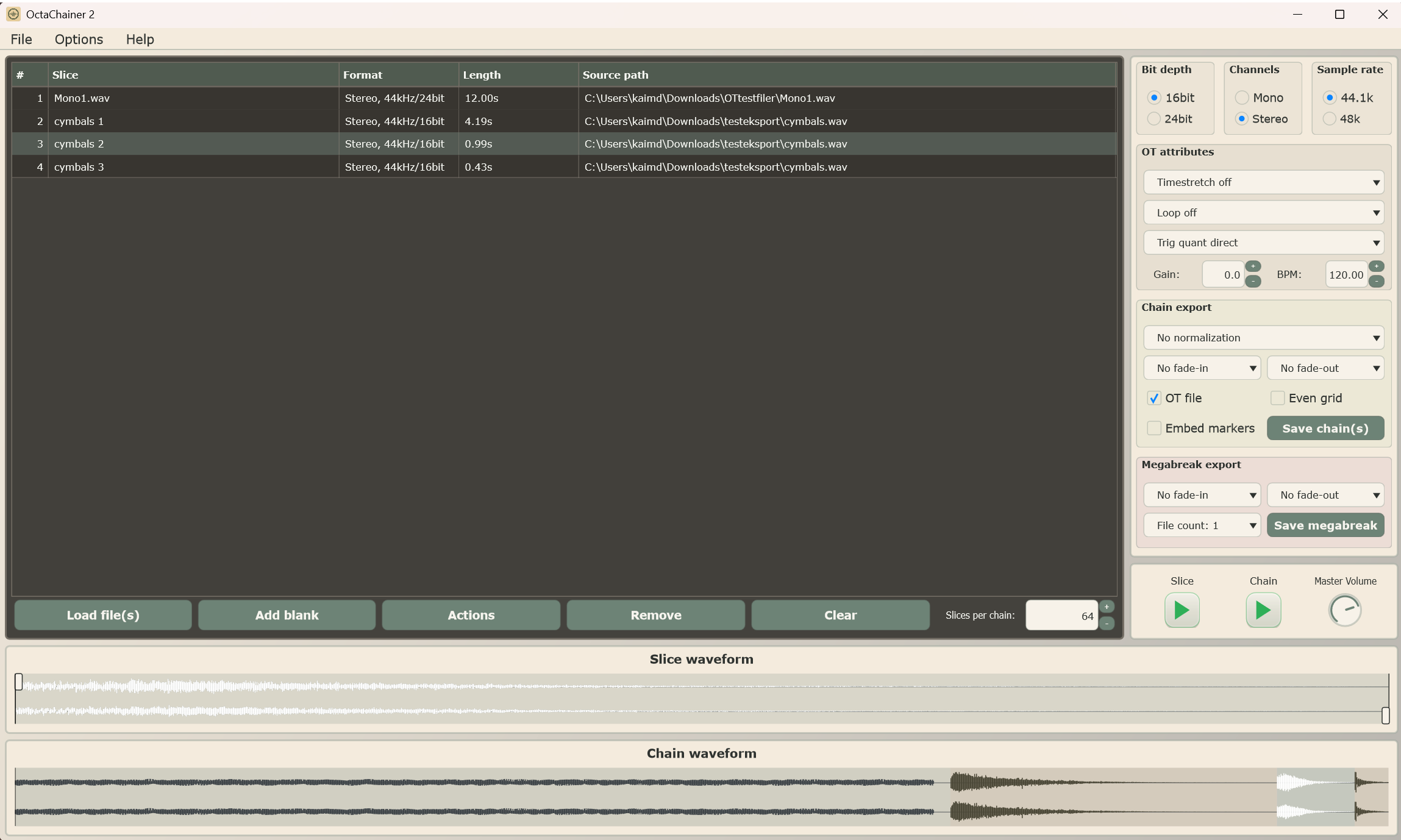
The simplest, most common use-case would be to load a set of short audio files, either with the Load file(s) button or by dragging and dropping a folder or set of files. These audio clips, called slices, can then be reordered, trimmed, split or merged in the list. The result is then exported as one or more chains. An extra “.ot” file can optionally be generated. This is a proprietary Octatrack file with metadata for the slices.
Toolbar options
Audio playback settings must be set to be able to hear the slices or chains. These settings does not affect the format of the exported data.
Default directories to use whenever the application is opened can be set in a dedicated dialog. In that dialog, the current settings of the application can also be saved as a default. If you, say, always want to export chains as 48k, 24bit mono with all slices normalized, you can configure this and then save that as a default.
Entire “snapshot” states of the application, including the audio data for the slices can be saved and loaded as Project files in the file menu. Note that these files include all audio data for the slices, so the file sizes can be significant.
An existing Octatrack chain can be imported by selecting an “.ot” file so that you can edit an already created chain. If the list already have slices loaded, these will be cleared. Alternatively, an “.ot” file can be dragged and dropped directly to the slice list.
The slice list
Slices can be added, removed and reordered. The currently selected slice can be viewed and trimmed in the slice waveform view. Use the slice playback button (or Spacebar) to play the current slice range.
The list has a max limit of 1000 loaded slices, and each slice should not exceed aprox. 1 minute of audio.
Wav files with embedded cue markers will be automatically sliced when loaded.
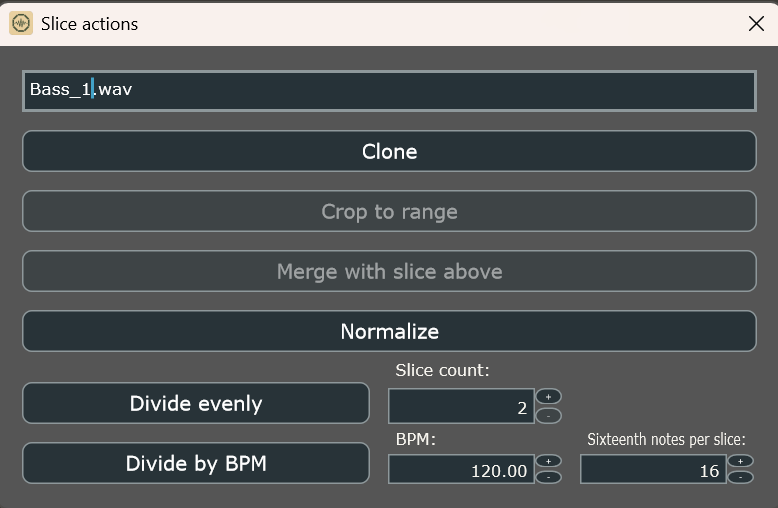
The “Actions” button will open a dialog where slice names can be edited and a selection of operations can be performed on the selected slice. For instance, a slice can be normalized, divided or merged with the slice above it in the list. These operations are destructive and can’t be undone, so consider saving the Project first if you are working with data that can’t be easily recovered.
The “Slices per chain” input indicates how many slices should be grouped together into a chain. If you have 10 slices and set this to 8, the exported result will be two chains. The first will have 8 slices, the next the remaining 2. The Octatrack has a max limit of 64 slices in a chain. If an “.ot” file is not created, the slice count can be increased to a max of 120.
The settings panel
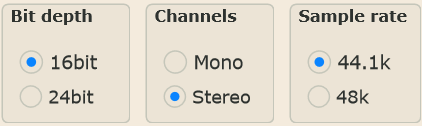
The top-most radio buttons to the right of the slice list is the target audio format for the exported files. The slice list support a combo of various mono/stereo files in various sample rates and bit depths. These slices will be converted/resampled to the target format on export.
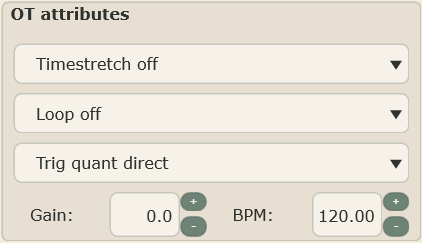
The OT attributes section is only relevant for the Elektron Octatrack. These settings does not affect the rendered audio file, but is included in the metadata stored in the “.ot” file the Octatrack uses.
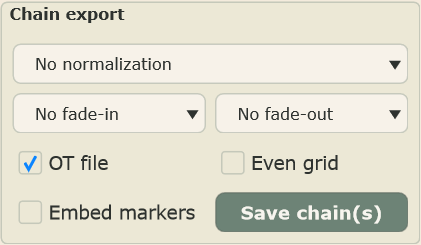
The Chain export section is where the chain gets rendered and saved. Slices or the resulting chain can be normalized and short fades can be performed on each slice to reduce the risk of audible “clicks”. The Even grid option adds trailing silence to all short slices so that all slices have the exact same length. These settings can be viewed in the chain waveform view and be checked by using the chain playback button (or Ctrl+P). The “Embed markers” option adds a footer to the wav file with cue markers for each slice. This data can be read by the Dirtywave M8 Tracker.
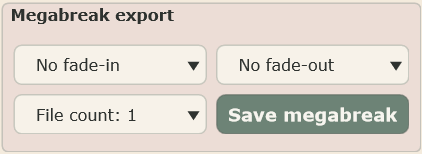
Similarly to the chain export, the Megabreak export section also generates chains. However, the slices gets shuffled around by a logic that makes sense for a very specific use-case. This Elektronauts forum thread explains the details. The Megabreak export is intended for the Octatrack only. It will always create “.ot” files.
Running OctaChainer from the command line
Advanced users might want to run OctaChainer without a UI from the CLI. Not all functionality is supported if used this way. The –help parameter will list the available options.
VST3 plugin
The plugin works the same way as the desktop version, but can be used as an Insert effect in a VST Host/DAW. Incoming audio will be passed-through to the output. The current state and audio slices will be saved along side the rest of the Project.
Some DAWs (primarily Steinberg Cubase and WaveLab) support a specific drag&drop standard that makes it possible to slice audio in Cubase, say, and then drag the entire event over to the plugin so that the audio is handled as separate slices by the plugin.
 Tic Tic